
How an audit works
When you start an audit, Tools & Equip takes the list of what should be there. You scan what you actually find. It sorts every tool into found, not found yet, belongs elsewhere (here, but the system says somewhere else), extra and unknown code. Moves made during the audit don't change the list.
Who can do this Everyone can see audits. Starting, scanning, finishing and canceling: Admin and Crib (Audits). Applying the fixes also needs Move tools.
Start an audit
- Open Reports → Audits and press Start an audit.
- Choose Audit a: Location, Kit, Job or Person, and pick which one.
- For a sealed box, tick Scanning a kit counts what is in it.
- Press Start.
Scan
- On a computer with a USB scanner: the scan box is ready. Scan each label; the box clears for the next one. You can also type a number and press Enter or Add.
- On phones: open Audit by scan in the app and pick the open audit. Several people can scan into the same audit at once. Their scans show up on the website by themselves every few seconds.
- Scanned a wrong one? Under Scans, press Remove.
- Click a tile (found, not found yet…) to show just those.
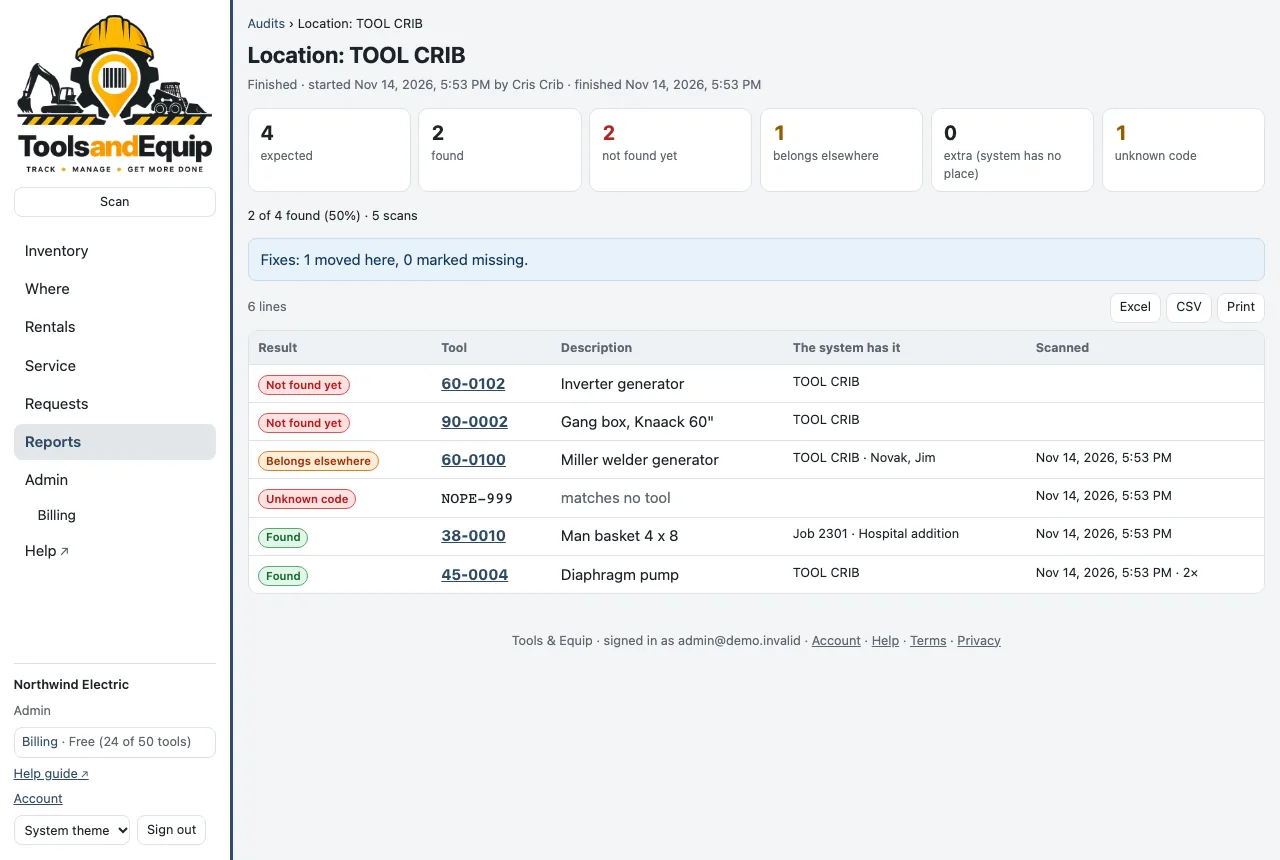
Finish and fix
- Press Finish….
- Choose the fixes you want: Move the N found here but recorded elsewhere to here and Mark the N not found as missing.
- Press Finish.
The fixes are ordinary moves, each in the tool's history. Without them, the audit only reports. Export the result to Excel or CSV, or print it. Cancel audit drops it with nothing changed.