
On this page
Who can move tools
Who can do this Admin and Crib (the Move tools right). PMs and field crews don't move tools themselves: they raise a request and the crib does the move.
Every move writes a line in the tool's history: what changed, when and who did it. If your company has Receivers accept transfers on, a move to a person waits for that person to accept it.
Check out and check in on the website
- Open the tool (search, or Scan its label).
- Under Where it is, press the move you want (see the list below).
- Fill in the box that opens and add Notes if useful.
- Press the button to save. A note confirms it, for example Check out: saved · now Out.
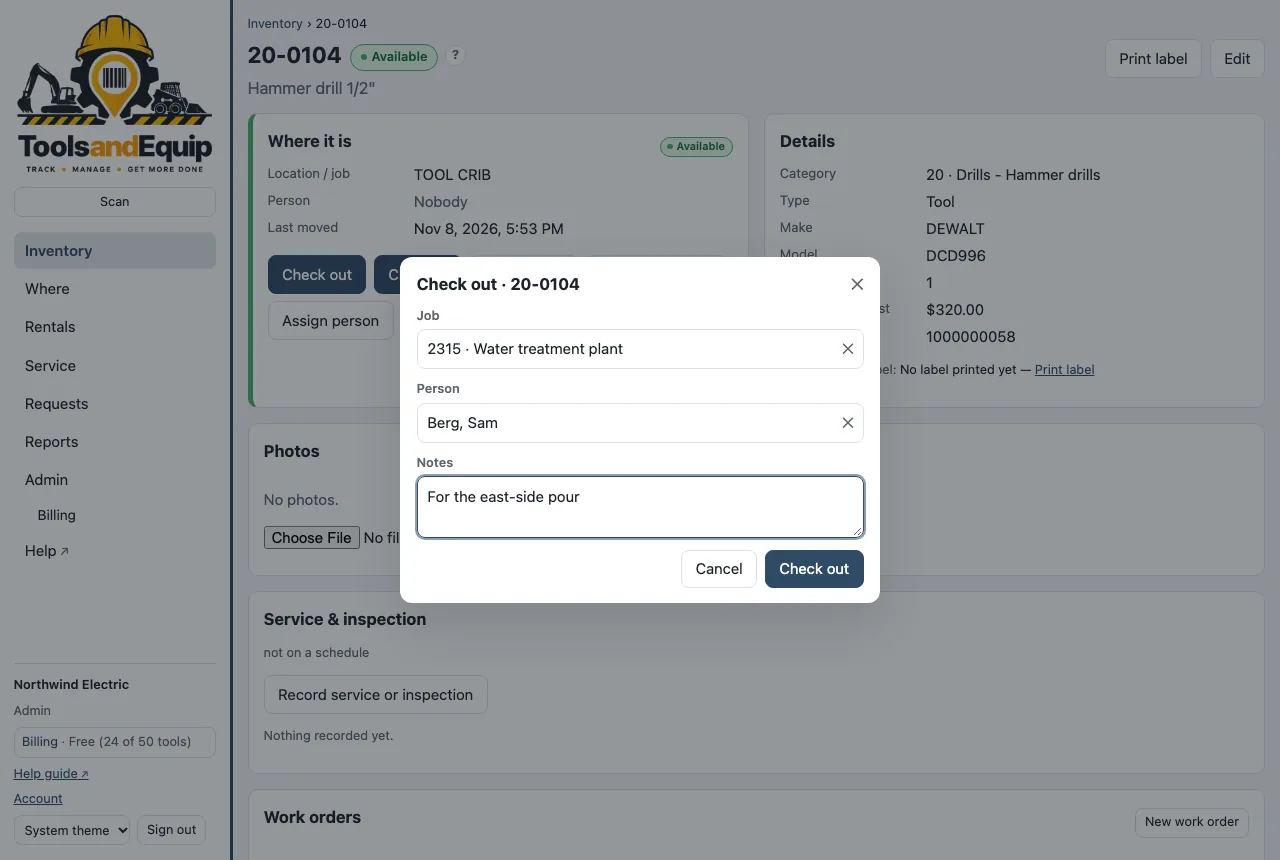
| Button | What it does |
|---|---|
| Check out | To a Job, a Person, or both. It becomes Out. |
| Check in | Back to a Location (required). It becomes Available. Tick Keep it in {name}'s name if the person keeps responsibility for it. |
| Move to job | From one job to another without coming back. |
| Move to location | Between your own places: yard, crib, trailer, shop. |
| Assign person | Put it in someone's name, or clear the name. |
| Send for service | It becomes In repair. Optionally say which shop or vendor it went to. |
| Back from service | Shown while a tool is in repair. Pick where it comes back to. |
| Mark missing | Nobody can find it. Add a note about where it was last seen. |
Booked for someone else soon? If the tool has a booking that has started or starts in the next 3 days for a different job or person, the box says so before saving, for example Booked Nov 20–24 for Main St Clinic (Fred) · confirmed — move to job anyway? See Moving a booked tool.
A kit moves everything packed in it, each item with its own history line. Move one item on its own and it leaves the kit. See Kits.
On the phone: Move and Check in
In the app, open a tool (scan it or search) and tap Move…. Choose:
- WHERE TO: Location, Job or Leave it where it is;
- WHO HAS IT: Keep current, Nobody or A person;
- STATUS: Work it out (the usual choice), or set it yourself;
- a Meter reading and Notes if you have them.
Then tap Move. Check in sends it straight back to your tool crib, held by nobody.
To move several at once, tap Select on the inventory (or press and hold a row), tap the tools, then Move…. Up to 200 at a time.
Scan out / Scan in (a whole truckload)
- In the app, open Scan out / in from the menu.
- Choose Check out or Check in at the top.
- Scan each tag. Each tool joins the Tray below. A Bluetooth or USB "wedge" scanner works too: type or scan into the box and press Return.
- Remove a wrong one with its ✕, or Clear the tray.
- Check out: tap Check out… and choose the job or place and who has them, once for the whole tray. Check in: tap Check in N and confirm.
If some fail, the app says which. The failed ones stay on the tray so you can try again.
Sign for it
When tools go to a job or a person from the phone, the app can ask the person taking them to sign:
- After you tap Next, the Sign for … sheet opens.
- Type the Name of the person signing.
- They sign in the box with a finger. Clear starts again.
- Tap Done, or Skip — no signature.
The signature shows under that move in the tool's history on the website (Show signature, for Admin and Crib). Signing works with no signal too.
Receivers accept transfers
Some companies want proof that a tool changed hands. With the company setting Receivers accept transfers on (Admin → Settings), a tool you check out or hand to a person waits until that person accepts it. Check-ins and moves to a place or a job that don't change who has it never wait. With the setting off (the starting point), every move happens at once, as described above.
What the giver sees
- Choosing a person in Check out or Assign person says {name} will be asked to accept it. After you save, the note says Sent to {name} to accept.
- The tool stays where it was, with you, until they accept: you are still answerable for it. Under Where it is it says Pending: waiting for {name} to accept.
- A whole tray from Scan out / in (or several tools picked at once) to one person is one transfer: they accept it once.
- While it waits you can Resend (ask again), Cancel transfer, or accept it right there with them (Accept now, below). Your waiting ones are listed under Transfers in the menu.
- If they decline, you are told (email and push) and the tools stay with you.
What the receiver sees
- A push and an email: Please accept: 3 tools from Kris (your notifications decide which). The website shows a bar A transfer is waiting for you to accept; the phone app shows To accept at the top of the inventory.
- Open it: the tools, who sent them and where they are going.
- Press Accept. The tools are now yours, and the history says Accepted by {name} on their device, with the time and the device.
- Or press Decline and say why (optional). Nothing moves.
Accepting works with no signal on the phone: it is saved and sent when the signal is back. If the tool was moved again in the meantime, the app says so and nothing changes.
Who can do this Accepting or declining: the person the tools were handed to (the login linked to that person in People). No right is needed.
Accept in person
When the receiver is standing at the crib, or has no phone or login, press Accept now on the tool, on the transfer, or under Transfers in the phone app's menu.
- No signature (the starting point): you see the receiver's name and the tools. Press Accept. The history says Accepted in person on {your name}'s device (no signature), with the time and your device. It's recorded under your name, because you pressed the button.
- With a signature: if your company ticks Ask for a signature when accepting in person, the button is Accept now (sign). They sign on your screen and the history says Accepted in person (signed by {name}) on {your name}'s device, with the signature under the move.
Those two never look alike in the history, the reports or the exports, and neither looks like Accepted by {name} on their device. A receiver accepting on their own phone or computer never signs.
On the phone, the Sign for … sheet at check-out works as before: a move to a person that they sign for is accepted at once. If you tap Skip — no signature, the move waits for them to accept.
Who can do this Anyone with Move tools (it happens on their device).
Confirm for someone
If your company allows it (setting Allow "Confirm for someone"), people with the right Confirm for someone can record that a receiver with no device took the tools: press Confirm for {name} and say how you know (a note is required). The history keeps who confirmed it and the note, and the receiver is told if they have a login.
Who can do this Admin (Confirm for someone), and only when the company setting allows it.
Pending transfers
Admin → Pending transfers (or Transfers in the menu) lists everything waiting in the company, with Cancel transfer, Resend and Accept now. Receivers are reminded by themselves after the hours set in the company setting (at most 3 times, between 7 am and 9 pm). History lists the decided ones: filter by Accepted on their device, Accepted in person (signed), Accepted in person (no signature), Confirmed for someone, Declined or Canceled, and export to Excel or CSV.
Who can do this Everything waiting, Cancel and Resend for anyone's: Admin (Pending transfers). The giver can cancel and resend their own.
When a tool moves again before it is accepted
- Any other move of a waiting tool (checked in, sent somewhere else, marked missing) takes it out of the transfer with a note, for example Moved again before Fred accepted. A transfer with nothing left is canceled, and the giver is told if someone else moved it.
- Sending it to another person replaces the first transfer.
- A late acceptance from a phone that had no signal changes nothing; the phone says why.
- An older scan still waiting on another phone shows up there as Moved by someone else since, with the waiting transfer as the reason.
No signal? Keep scanning
The app keeps a copy of your fleet on the phone, so scanning keeps working in a basement or out in the field. Moves, stock issues and audit scans are saved on the phone and sent by themselves when the signal comes back. A note at the top says No signal — scans and moves are kept on this phone and sent later.
Open Waiting to send in the menu to see what is waiting, or tap Send now.
Moved by someone else since: "Apply mine" or "Keep theirs"
If someone else moved the same tool after you scanned it, your move is held, not sent. In Waiting to send it shows who moved it, when, and where it is now. You choose:
- Keep theirs: drop your move. Their move stands.
- Apply mine: your move replaces theirs (the app asks you to confirm).
Something refused, for example a tool your role can't move? It shows the reason, with Retry and Drop.
Adding a tool and deleting your account need a connection. Don't sign out with changes still waiting, or they are lost.
Can't move a tool?
- No move buttons? Your role doesn't have Move tools. Ask the crib to do it, or raise a request.
- Retired tools can't be moved. An admin can bring one back into service first.
- A "Test mode" banner at the top means your company is trying Tools & Equip next to its old system. Tools copied from the old system are read-only there (marked real · read only), and only test tools numbered ZZ- can be moved.