
Templates
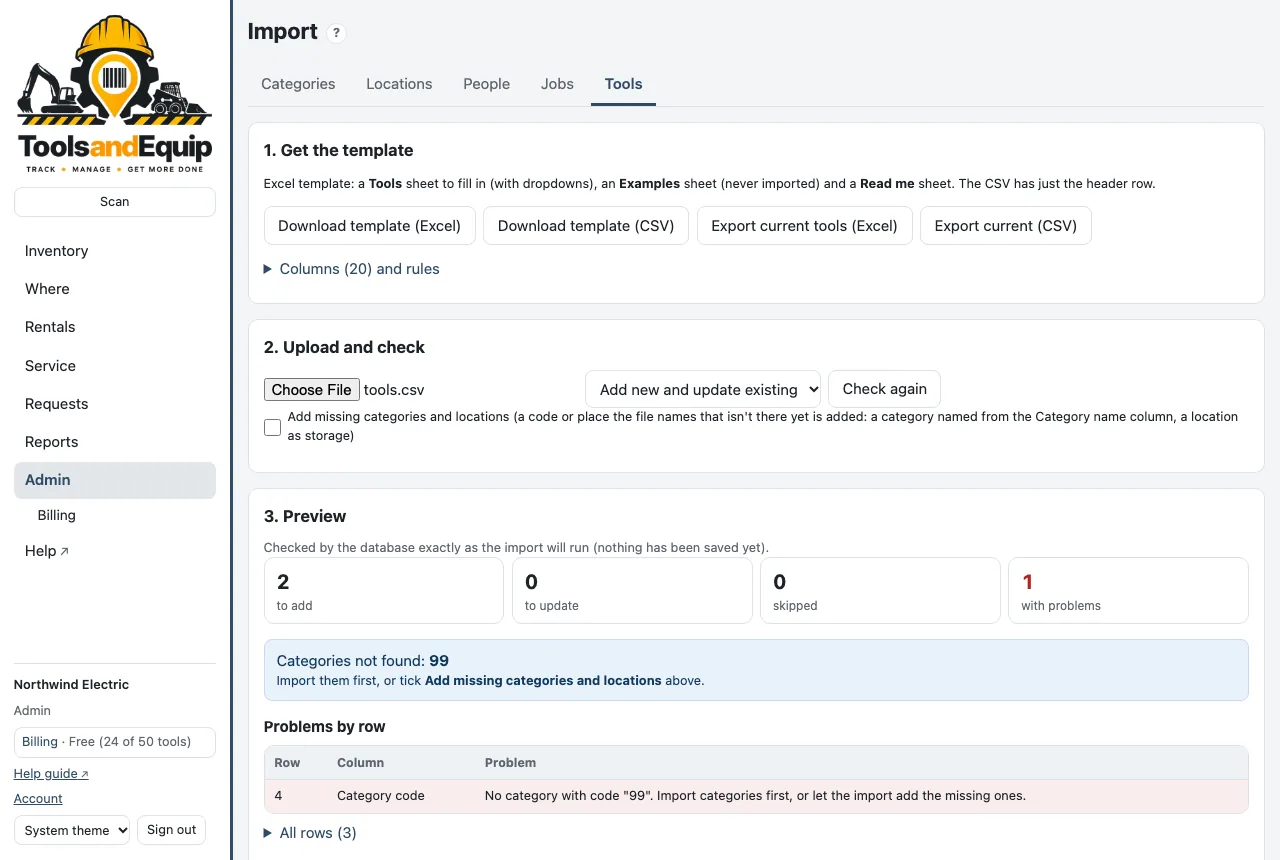
Each list has a template. The Excel one has a sheet to fill in (with dropdowns), an Examples sheet that is never imported, and a Read me sheet explaining every column. The CSV has just the header row.
| List | Download | Columns (* = required) |
|---|---|---|
| Categories | Excel · CSV | Code*, Name*, Active, Service every (days), Service every (meter), Inspect every (days) |
| Locations | Excel · CSV | Name*, Kind, Sort order, Active |
| People | Excel · CSV | Employee no, Name*, Preferred name, Email, Phone, Title, Occupation, Field lead, Active |
| Jobs | Excel · CSV | Job number, Job name*, PM, City, State, Status, Notes |
| Tools | Excel · CSV | Tool number*, Category code*, Description*, Type, Make, Model, Model year, Serial number, Barcode, VIN, License plate, Plate state, Replacement cost, Meter, Quantity, Location, Notes, Status, Purchase date, Category name |
You can also download them in the app on each tab of Admin → Import (Download template (Excel)). Those copies have dropdowns of your own categories and locations.
Keep the header row exactly as it is. The column order can change; the names can't. A blank cell means "no value" for a new record and "keep what is there" for an existing one.
Which order
- Categories and Locations (or let the tools import add the missing ones).
- People, so each job can find its PM.
- Jobs.
- Tools.
Who can do this Categories, Locations and Tools: Admin. People and Jobs: Admin and Crib.
Import a file
- Open Admin → Import and pick the tab: Categories, Locations, People, Jobs or Tools.
- Under 2. Upload and check, choose your .xlsx or .csv file. (An old .xls? Open it in Excel and save it as .xlsx.)
- Choose Add new and update existing or Add new only (skip existing).
- Tools only: tick Add missing categories and locations if your file names some that aren't in yet.
- Read the 3. Preview. Nothing has been saved yet. It shows how many rows will be added, updated, left unchanged or skipped, and lists every problem by row and column.
- Fix problems in your file and upload it again, or press Import N rows to bring in the good rows and leave out the rest.
How rows are matched
- Categories by code; Locations by name (capitals don't matter).
- People by employee number, else the exact name.
- Jobs by job number. A job with no number is always added as new.
- Tools by tool number. For a tool that already exists only the descriptive columns are updated. Location and Status only apply to new tools: moves are made in the app, not by import.
Nothing is ever deleted by an import. A person marked Active = no is deactivated and their tools become unassigned. Over your plan's tool limit after the grace period, the preview says how many new tools would be refused.
Undo an import
Every import is listed under Import history. For 30 days you can press Undo…: what it added is removed and what it changed is put back. Anything that has been used or changed since the import is kept as it is, and the dry run shows you what is kept and why before you press Undo N now.
Get your lists out
Each tab has Export current … (Excel) and Export current (CSV): your current list in the same columns as the template. Handy for a big clean-up: export, fix in Excel, import back.