
What is due
Open Service. Service & inspection due lists tools with an overdue inspection, an overdue service, nothing ever recorded, or something coming due. Choose How far ahead (overdue only, 30 or 90 days) and the Kind. Click a row to open the tool. Export to Excel or CSV, or print.
Who can do this Everyone can look.
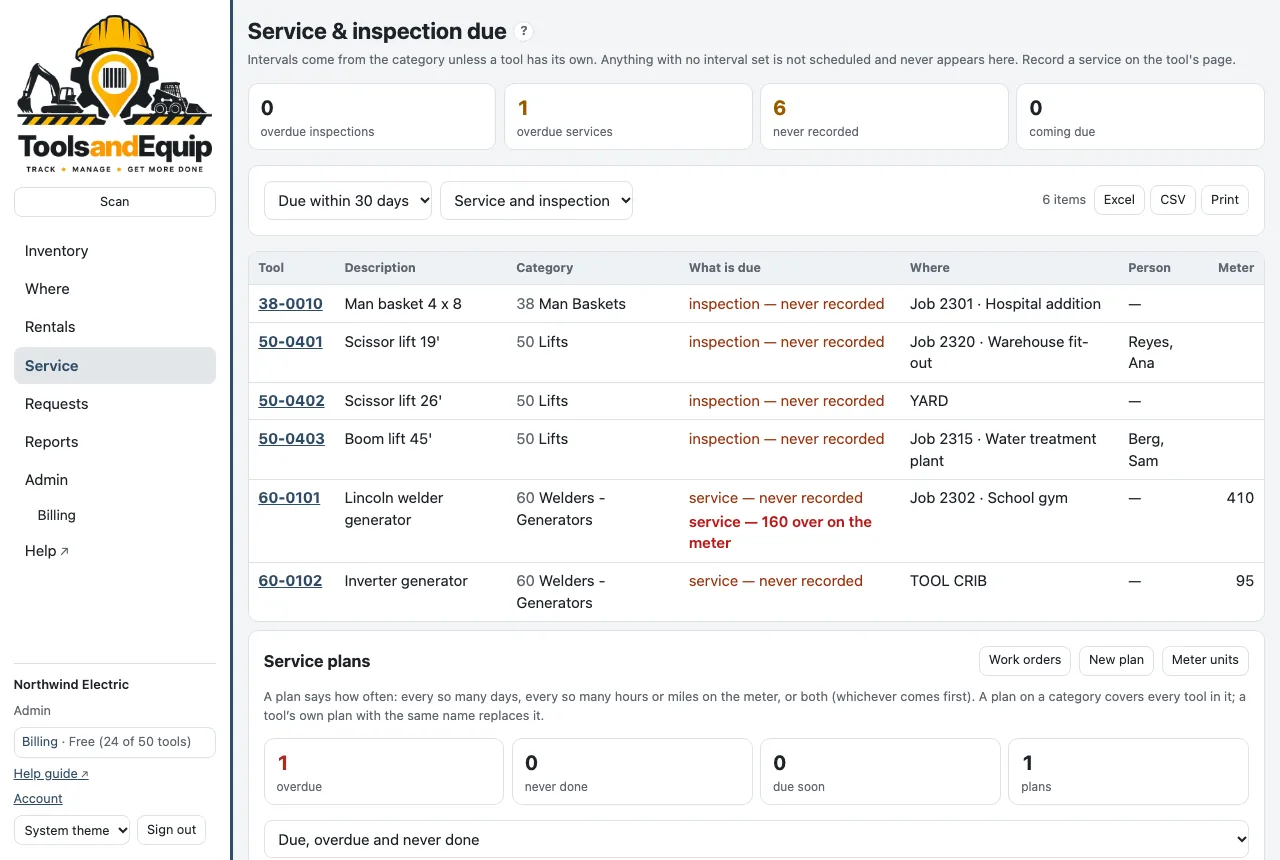
Only tools with an interval appear. Set intervals on the category: Admin → Categories and service intervals → Service every (days), Service every (meter), Inspect every (days). Every tool in the category inherits them.
Record a service or inspection
Who can do this Admin and Crib (Record service).
- Open the tool and, in Service & inspection, press Record service or inspection.
- Choose Record: Service, Inspection or Repair. Set the Date and Meter now.
- For an inspection, set the Inspection result: Passed, or Failed: take it out of service.
- Add who did it, the vendor, the cost and notes, then press Record it.
A failed inspection takes the tool out of service (status In repair). You are asked to confirm first.
The phone app has Record service… on each tool too.
Service plans by hours or miles
Who can do this Making plans and meter units: Admin and Crib (Service plans and meters). Marking a plan done: Record service.
A plan says how often: every so many days, every so many hours or miles on the meter, or both (whichever comes first). For example "Oil change every 250 hours" for the welders. A plan on a category covers every tool in it; a tool's own plan with the same name replaces it.
- At the bottom of Service, press Meter units and set what each category's meter counts (hours, miles or km).
- Press New plan. Choose Every tool in a category or One tool, give it a Name, a Kind, and Every … days and/or Every … on the meter. Save.
- When the work is done, press Done… on the tool's row, enter the date and meter, and Record.
Meter readings
A meter reading is saved whenever you record a service, mark a plan done, or close a work order. The tool page lists them under Meter readings; the app has Log meter….
Work orders
Who can do this Everyone can read work orders. Opening, assigning, changing and canceling them: Admin and Crib (Work orders). Working one that is assigned to you: Crib, PM and Field (Work assigned work orders).
Use a work order for a repair or service with parts, labor and cost, and give it to whoever will fix it. Work orders is in the main menu: the number beside it is how many are open (for those who run work orders) or how many are open and assigned to you.
Open one and give it to someone
- Press Work orders → New work order (or use the Work orders card on the tool's page).
- Pick the Tool, the Kind (Repair, Service, Inspection), the Priority and a Title like "Replace pull cord", and a due date.
- In Assigned to, choose who fixes it:
- Someone with a login: they are told at once (email and the phone app) and can update it themselves.
- A person without a login (from People, for example the shop mechanic): nobody is told; you update the work order for them.
- An outside vendor or shop: the name, and optionally an email and phone number. Tick Email them this work order to send them what needs doing, the equipment (number, make, model, serial) and the due date. Their reply comes to you. You update the work order as they report back; Email the work order again resends it.
- Nobody yet: everyone who runs work orders is told there is a new one to take.
- Check Take it out of service, then press Open work order. For a repair it is ticked already: the tool shows as in repair until the work order is done. Untick it for a small fix while the tool is still in use. A service or an inspection leaves the tool available unless you tick it.
While a work order holds a tool in repair, the tool's page says In repair — WO #123 (a link to the work order) and the inventory row shows WO #123. Closing the work order makes the tool available again where it was; canceling it puts the tool back as it was before.
See them all
The Work orders page lists them with who has each one (marked no login, vendor or you) and the due date; overdue ones are marked. Choose Open, Open and assigned to me, Open, nobody assigned or All, closed too, and the Kind. If you don't run work orders, the page opens on the ones assigned to you. Export to Excel or CSV, or print.
Work it
Whoever has it, or someone who runs work orders, opens it and:
- sets the Status: Open, In progress, Waiting for parts;
- logs Labor hours (the Labor rate / hour, other cost, priority, due date and who has it are set by those who run work orders);
- presses Add a part: from your consumables stock, or bought in;
- adds notes and photos on the Timeline: what was found, what was ordered, a picture of the broken part.
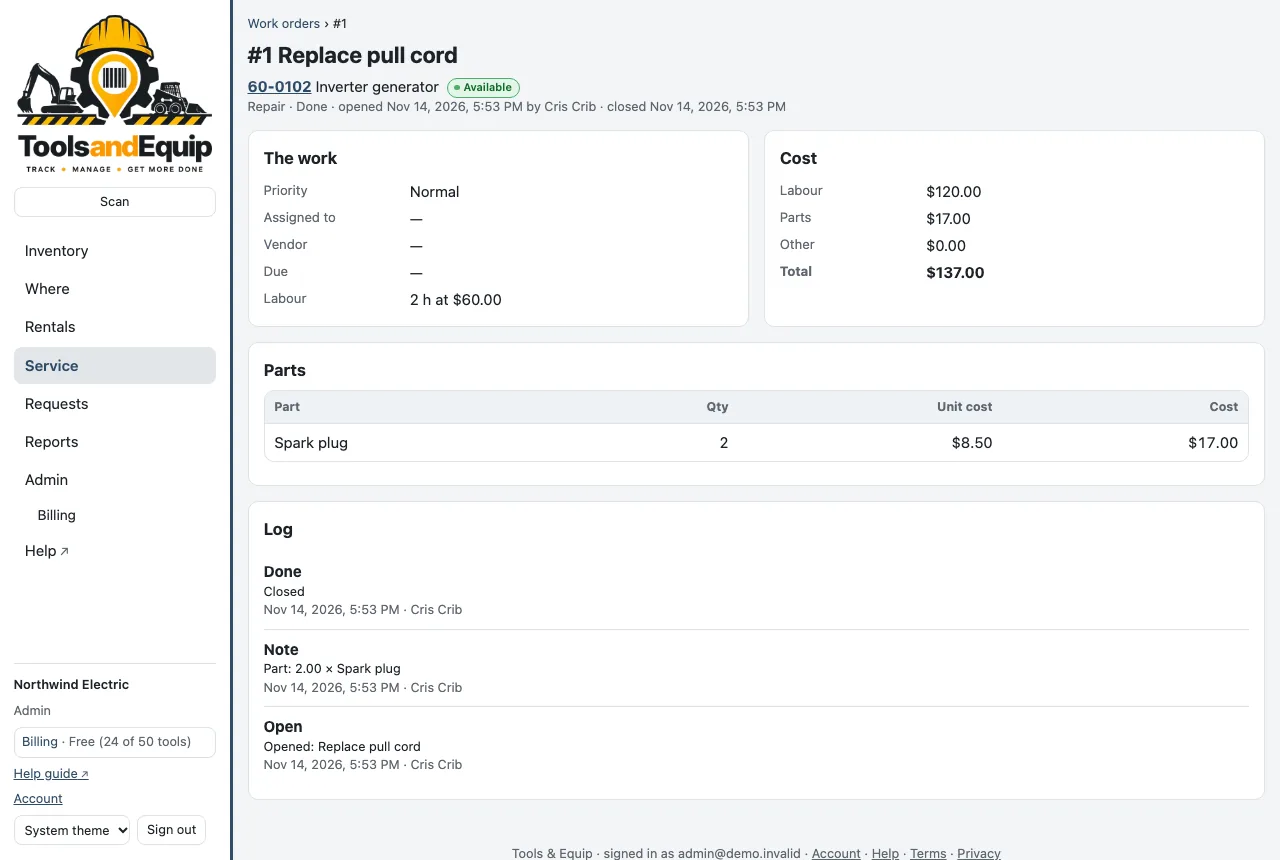
The Cost card adds it all up. Every change is on the timeline with who made it and when.
Close it when it's done
- Press Close…: the date, the meter reading, the result for an inspection, and (with Move tools) where the tool comes back to.
- Press Close work order.
Closing writes the tool's service log with the total cost and marks its service plan done. A tool the work order took out of service becomes available again where it was (also when the person who closes it can't move tools); with Move tools you can pick another place. A failed inspection keeps it in repair, and so does another open work order that holds the same tool. Only those who run work orders can cancel one.
Who is told
- Assigned to you: when a work order is assigned or reassigned to you.
- New work orders: one is opened with nobody assigned (those who run work orders).
- My work orders' progress: one you opened (or that came from your request) is started, waiting for parts, done or canceled; and the person it was assigned to hears when it is canceled.
- Overdue work orders: once a day after 7 am, each open work order past its due date, to whoever has it; when a vendor or someone without a login has it, to whoever opened it.
Each person turns these on or off in Settings → Notifications. When an admin turns Work orders off in Settings → Features, nothing about work orders is sent.
On the phone app, My work orders lists yours; open one to change its status, add a note or photo, and close it when it's done (this needs a signal). A work order notification opens it. A tool in repair shows In repair — WO #123 on its page in the app too.