Find a tool
Who can do this Everyone who signs in can look tools up.
Inventory is the first page you see. Type in the search box: a tool number, description, make, model, serial number, place, job or person. Barcode, VIN, plate and category match too. The list updates as you type.
Typing one or two digits (like 45) matches that category code.
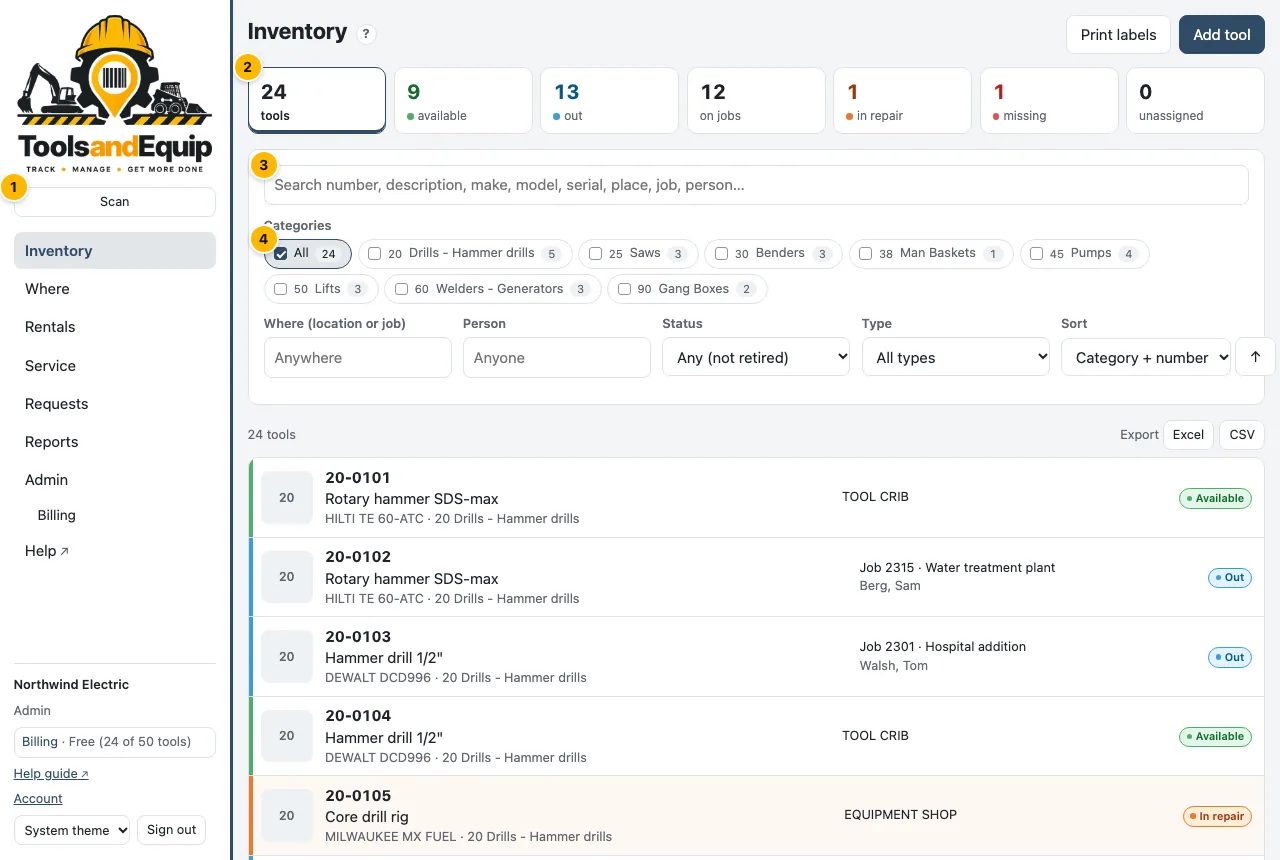
Fastest of all: press Scan at the top and point the camera at the tool's label or barcode. The tool page opens.
Category chips
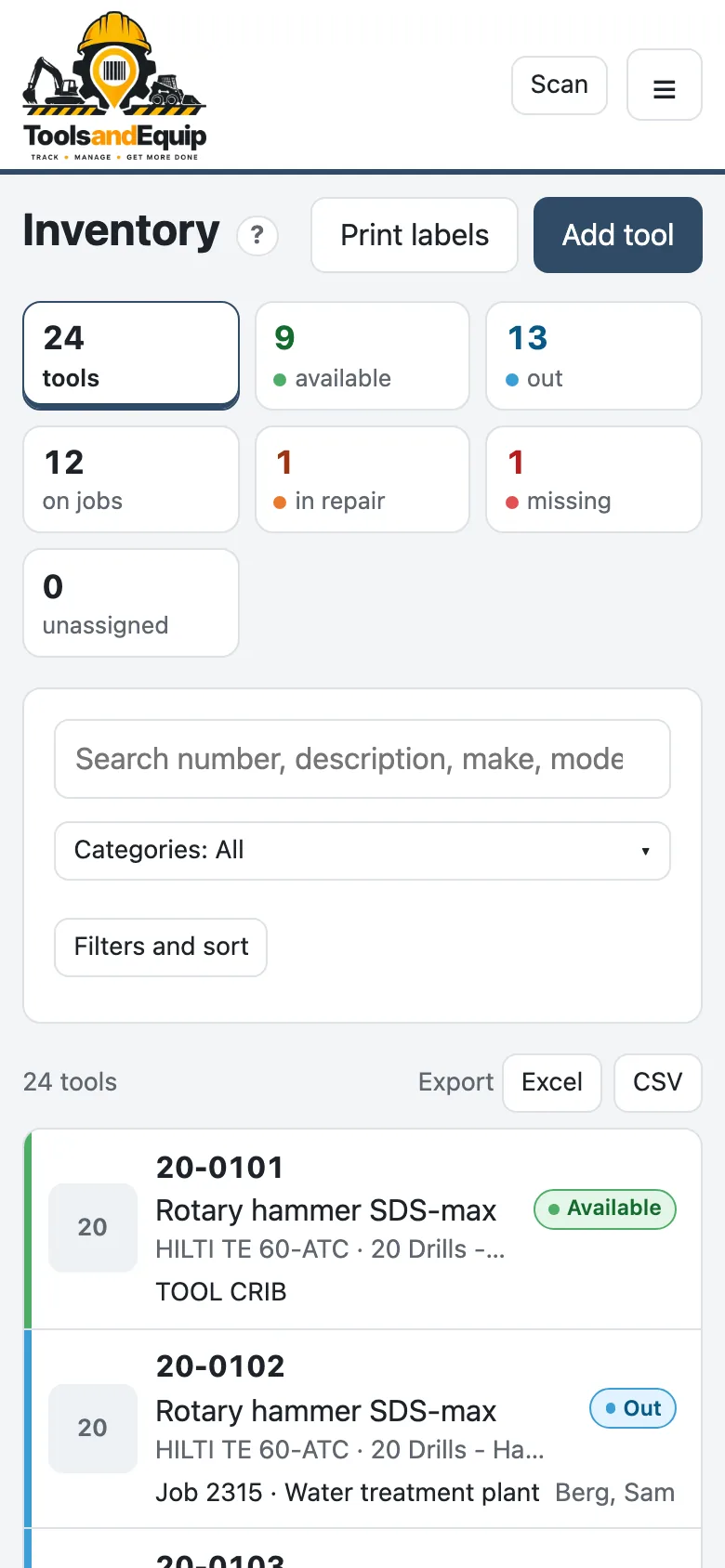
Under Categories there is a chip for each category with its tool count. Click one to show only that category. Click more chips to show several. All clears them. On a phone the chips fold behind a Categories button.
Status tiles and colors
The tiles at the top count the tools: tools, available, out, on jobs, in repair, missing and unassigned. Click a tile to filter by it. Click it again to clear it.
Each status has its own color, on the badge, the stripe down the row and the tool page. The status is always written out too, so you never have to rely on the color.
| Status | Means |
|---|---|
| Available (green) | In a storage place, ready to go. |
| Out (blue) | Checked out to a job or a person. |
| In repair (orange) | Sent for service or repair, or failed an inspection. |
| Missing (red) | Nobody can find it. |
| Unassigned (red) | It was in the name of someone who has left. Find out where it is. |
| Retired (gray) | Sold, scrapped or lost for good. Hidden from the list and the plan count, but its history stays. |
More filters and sorting
Press Filters and sort to filter by Where (location or job), Person, Status and Type (Tool, Equipment, Other), and to sort by number, description, category, status, where, person or last moved. The ↑/↓ button reverses the order. Clear filters starts again.
- To see retired tools, set Status to Retired.
- The filters live in the page address, so you can bookmark a view or send it to someone.
- Export (Excel or CSV) gives exactly what is on screen, every page of it, with the replacement cost totaled.
- A tool booked in the next 60 days has a booked 11/20 tag. Select tools lets you tick several tools, then Add to a request… or Reserve… them together (see Reserve from a tool or the inventory).
The tool page
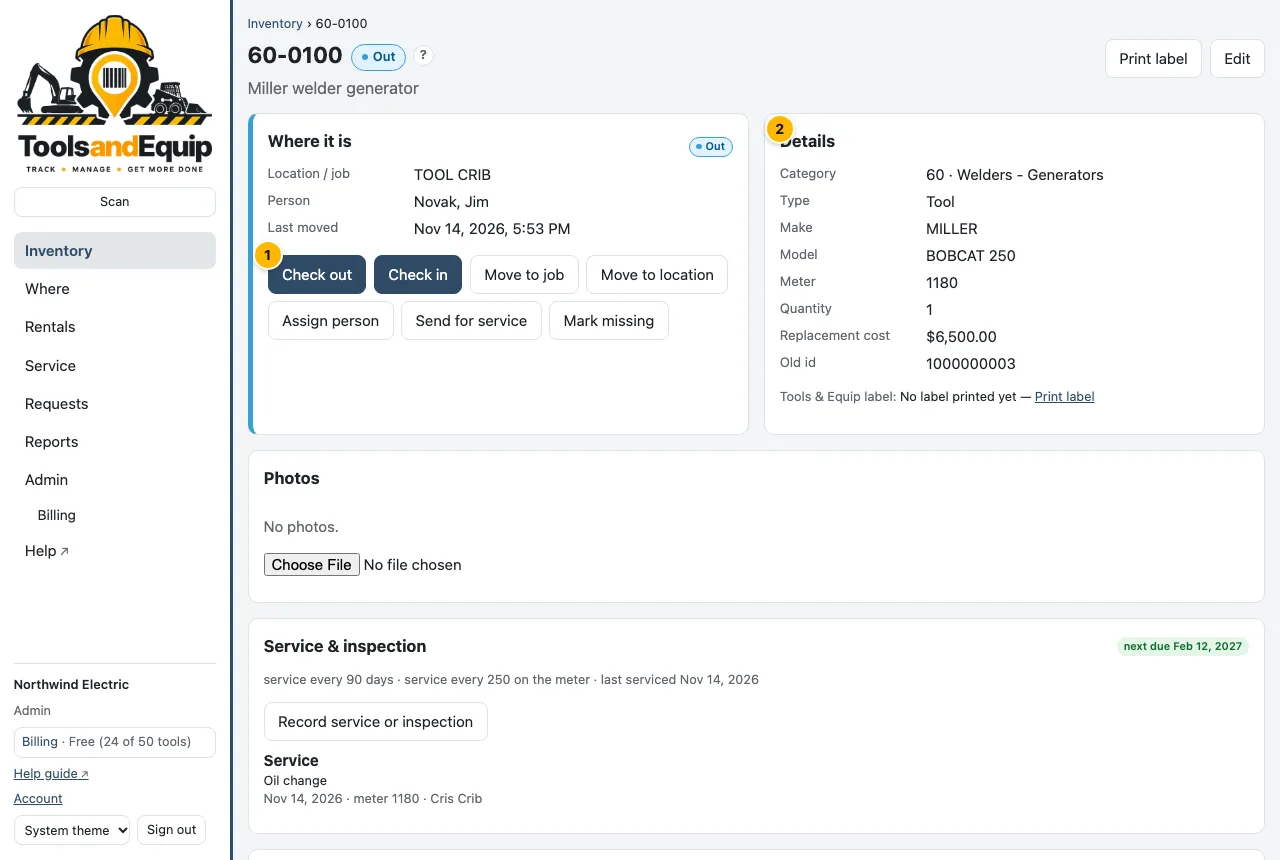
Click a tool to open its page. It shows:
- Where it is: the place or job, the job's PM, the person who has it and when it last moved. The move buttons are here too (see Moving tools), with Reserve… and any bookings in the next 60 days (see See a tool's bookings).
- Details: category, type, make, model, serial, barcode, VIN, plate, meter, quantity, replacement cost, notes, and when its label was printed.
- Photos: its own, or ones shared by every tool of the same make and model. Click a photo to enlarge it.
- Service & inspection, Work orders, Kit and Documents, when your company uses them.
- Comments: notes from anyone, like "cord is nicked".
- History: every move, status change, service and edit, newest first, with who did it. A signature taken on the phone shows as Signed by … with Show signature.