
On this page
See what is booked
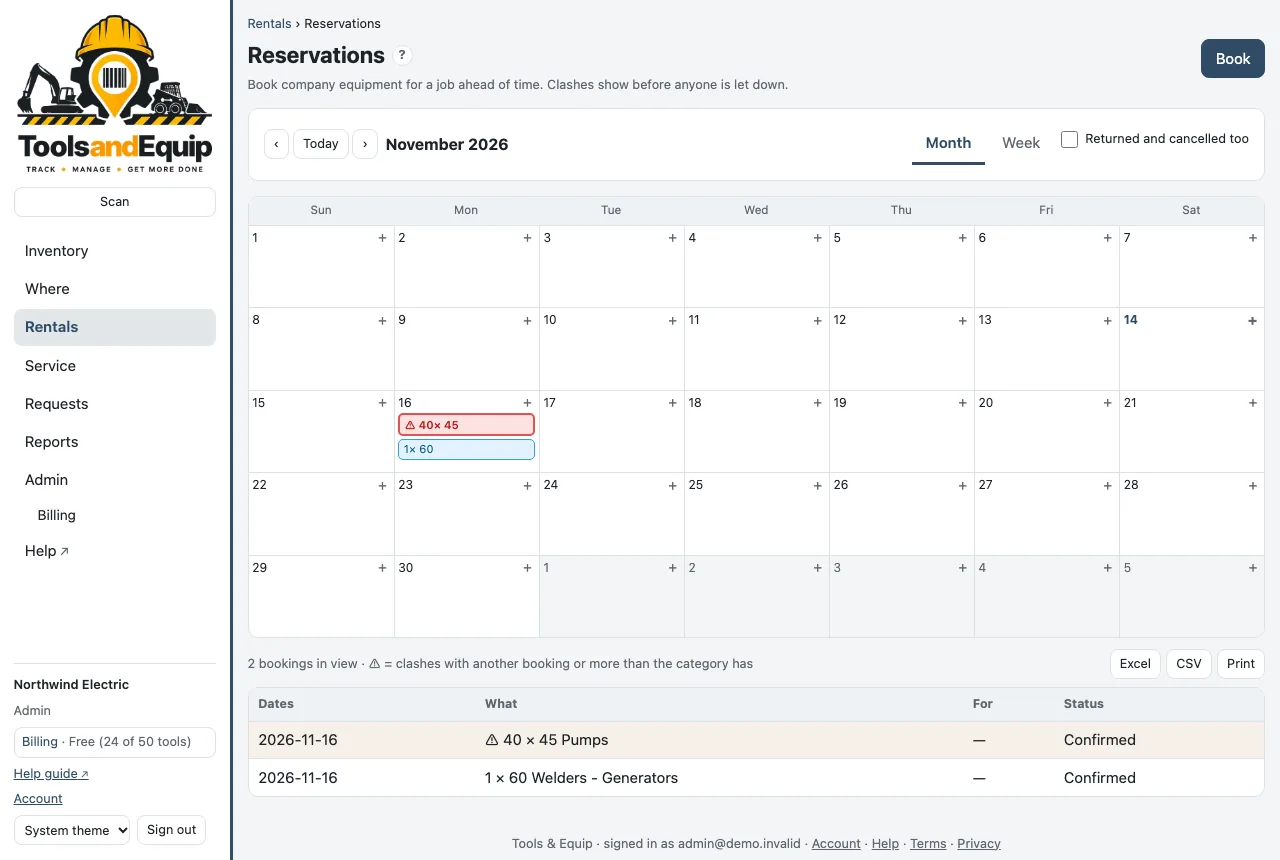
Open Calendar in the menu. The calendar has Month and Week views and ‹ Today › to move around. A ⚠ marks a clash: the same tool booked twice, or more of a category than you have.
Booking statuses: Requested, Confirmed, Out, Returned and Canceled. Bookings past their end date with tools still out are flagged as overdue.
Color the calendar by job or person
Jobs and people can each have a color (see Admin). Above the calendar, Color by chooses how bookings are colored, just for you in this browser:
- Status (the usual look): blue confirmed, dashed requested, green out.
- Job or Person: each booking is filled with its job's or person's color, with black or white text so it is easy to read in light and dark mode. Bookings whose job or person has no color stay gray. A requested booking keeps its dashed edge.
A ⚠ (clash) and a ⏱ (overdue) with a red outline still show whatever the color. The day list and the table under the calendar show the same color dot.
Under the calendar, a legend lists the jobs or people in view with their colors. If you have the Jobs right (or People, for people), click one to set or change its color right there.
Pick a color
The color picker has a row of 12 ready-made colors that read well on a light or a dark screen, Custom… for any other color (the system color picker, or type a code like #2E7D32), and the striped circle for no color. Custom colors you picked lately are offered again next to the ready-made ones.
Booking details and quick actions
Right-click a booking on the calendar (on a phone or tablet: press and hold it for about half a second) to see its details in a small box next to it: the equipment, job, person, dates, status, clashes and notes. From there you can Open it and, if you are allowed, Confirm, Check out…, Change, Move to… or Cancel booking. With the keyboard, move to a booking and press Shift+F10 (or the menu key). Escape or a click outside closes it. A plain click still opens the booking as before.
Move a booking by dragging
Who can do this Admin and Crib (Manage bookings) for any booking; Book tools for their own. Only while it is requested or confirmed.
- Drag a booking to another day, in the month or the week view. On a phone or tablet, press and hold it, then slide your finger. The day it would land on is highlighted.
- It keeps its length: a 4-day booking dragged one day later starts and ends one day later. A note says Moved 38-0010 to Nov 21–24 with Undo to put it back.
- If the new days clash, nothing moves and the page says why. The crib can Move anyway (overbook).
- Without a mouse: open the booking's details (Shift+F10) and use Move to… with a date.
Book equipment
Who can do this Admin, Crib and PM (Book tools). A PM's booking is a request until the crib confirms it.
- Press Book (or the + on a day of the calendar).
- Choose One particular tool, or Some of a category (any of them) and How many.
- Set From and To (last day), the Job, the Person and any notes.
- Save. If it clashes, you see why. Pick other dates, or ask the crib.
Reserve from a tool or the inventory
Who can do this Admin, Crib and PM (Book tools).
- On a tool's page, press Reserve… under Where it is. The booking form opens with One particular tool and that tool already filled in. Set the dates, the job and the person, and save.
- For several tools, press Select tools in the inventory (Select to reserve if you don't fill requests), tap the tools (across pages and searches), then Reserve…. Each tool gets its own booking, all with the same dates, job and person, so each one can be confirmed, checked out or canceled on its own.
- If some of them clash, the rest are booked and the form lists the ones that clash and why. The crib can Book them anyway (overbook); anyone else closes the form and picks other dates for those, or asks the crib.
- A PM's bookings are requests until the crib confirms them, the same as from the calendar.
See a tool's bookings
A tool that is booked in the next 60 days says so under Where it is on its page, for example Booked Nov 20–24 for Main St Clinic (Fred) · confirmed. Click the line to open the calendar at that date. In the inventory the tool has a booked 11/20 tag (booked to 11/24 once the booking has started).
Bookings of Some of a category don't name a tool, so they show on the calendar only.
Moving a booked tool
If you move a tool, or add it to a request, while it has a booking that has started or starts in the next 3 days for a different job or person, the box warns you before anything is saved: Booked Nov 20–24 for Main St Clinic (Fred) · confirmed — move to job anyway? Press … anyway to go ahead or Don't to change your mind. Moving it to the booking's own job or person doesn't warn. Check in, Back from service and Mark missing never warn.
The booking stays on the calendar either way. If the tool won't be back in time, tell the crib or the person who booked it.
Confirm, check out and return
Who can do this Admin and Crib (Manage bookings).
- Confirm a requested booking.
- Check out… when it leaves: for a category booking, scan or type which tools go. Each gets an ordinary check-out in its history.
- Returned when it is back.
- Book anyway (overbook) lets the crib book over a clash on purpose.
- Change or Cancel booking. People without Manage bookings can change or cancel only their own, while it is still requested or confirmed.