
On this page
What a label does
Each label has a QR code, the tool number, a short description and your company name. Scan the QR code with any phone camera and the tool's page opens (after you sign in). It works in the Tools & Equip app too. The label keeps working if the tool's details change, and after re-imports.
Print labels
Who can do this Admin and Crib (the Labels right).
Open Admin → Labels, or press Print labels on the inventory (it uses your current filters), or Print label on a tool's page.
- 1. Which tools: One or a few, by number (type numbers separated by commas or spaces, then Find), The inventory list as filtered, Everything at a location, or All tools (not retired). Tick Only tools never labeled to skip ones you've done.
- 2. Label sheet: pick the Avery sheet you have (below). Click the first free label on the sheet picture if you are using a partly used sheet: Start at label N.
- 3. Print: press Make PDF. The PDF downloads. Open it and print.
- Stuck them on? Press Mark N as labeled. The tool pages then show when their label was printed.
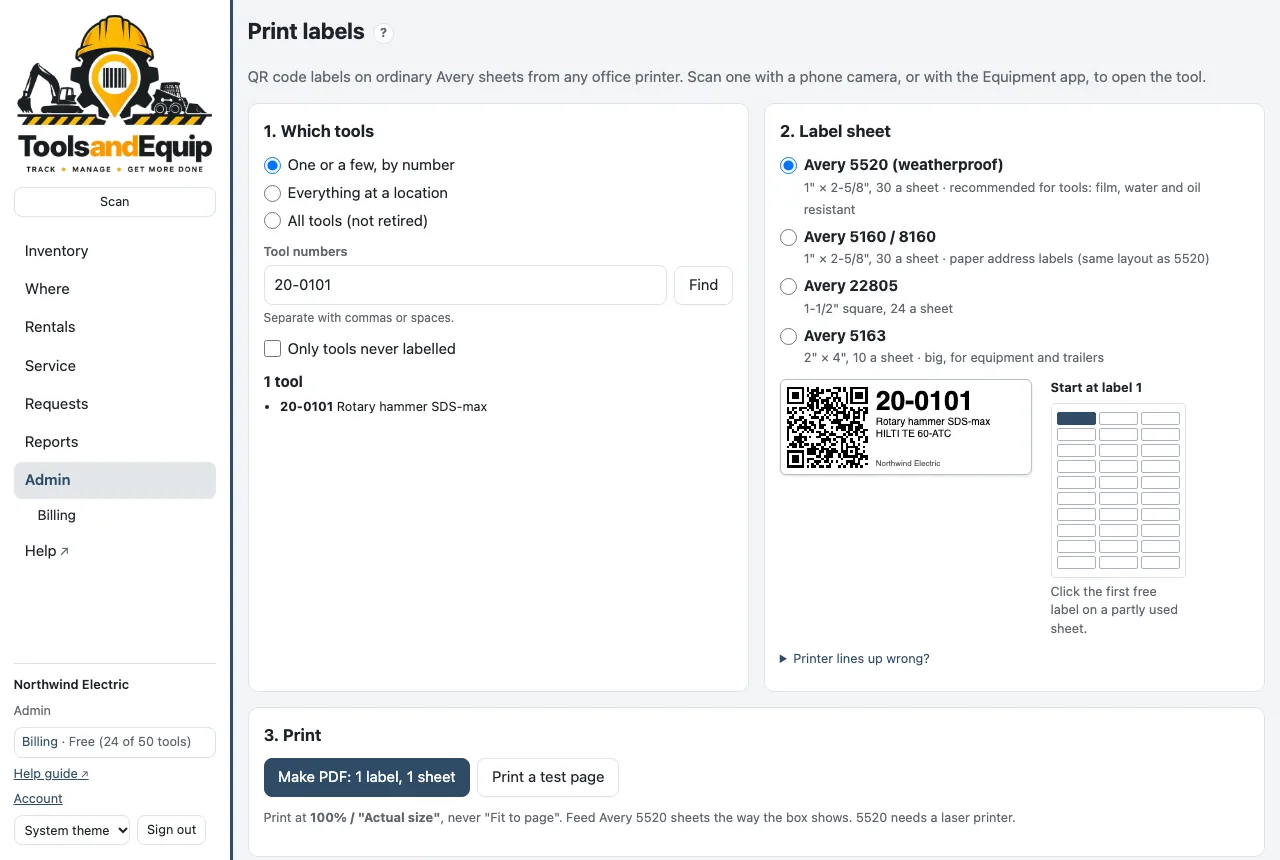
Which Avery sheet
| Sheet | Size | Best for |
|---|---|---|
| Avery 5520 (weatherproof) | 1" × 2-5/8", 30 a sheet | Recommended for tools. Film that stands up to water and oil. Needs a laser printer. |
| Avery 5160 / 8160 | 1" × 2-5/8", 30 a sheet | Paper address labels, same layout as 5520. Fine indoors. |
| Avery 22805 | 1-1/2" square, 24 a sheet | Small, square spots. |
| Avery 5163 | 2" × 4", 10 a sheet | Big: equipment, trailers, gang boxes. |
The page remembers your sheet on that computer.
Print it the right size
Always print at 100% or Actual size. Never "Fit to page" or "Shrink to fit": the labels would miss the sheet.
- Press Print a test page and print it on plain paper.
- Check the 2-inch ruler on it measures exactly 2 inches.
- Hold the test page over a label sheet against a window. The outlines should sit on the label edges.
- Off a little? Open Printer lines up wrong? and nudge it Right / left or Down / up (in inches; right and down are positive). Print the test page again. The nudge is saved for that sheet on that computer.
Feed the sheets the way the Avery box shows.
Blank pre-printed labels
Blank labels come printed in packs, each with its own QR code and a short code under it, like K7Q-M3X-PDH. They belong to nobody until you stick one on a tool and link it. After that, scanning it opens that tool, the same as a printed label.
Who can do this Admin and Crib (Edit tools or the Labels right). Someone who can only Add tools can link a fresh label to a tool, but not move one.
- 1. Stick the label on the tool.
- 2. Scan it with any phone camera, the website's Scan, or the app. The first time, you see "Blank label K7Q-M3X-PDH is not on a tool yet."
- 3. Link it: press Link to a tool…, type part of the tool number or description, and pick the tool. Or press Add a new tool with this label: the Add tool form opens, and the label is linked when you save.
From a tool's page you can do it the other way round: under Details, press Link a label, then scan the label or type its code. Case, spaces and dashes don't matter. The last character is a check: if you mistype one character, you are told it's not a label code, so a typo never links the wrong label.
A tool can have more than one label. A tool with a linked label counts as labeled on Print labels (Only tools never labeled leaves it out).
Label damaged, or the tool retired
- New label on the same tool: link the new one. Then press Unlink next to the old one on the tool's page.
- Move a label to another tool: link it to the other tool. You are asked first: "This label is on 45-3917. Move it to 60-0100?"
- Unlink: on the tool's page, press Unlink next to the label. Scanning it then opens nothing. It stays your company's, so you can link it to another tool later.
Every link, move and unlink is in the audit log.
Labels from another company
Once a blank label is linked, it belongs to that company. Anyone else who scans it sees only "This label belongs to another company." Someone who isn't signed in sees only that it is registered to a company on Tools & Equip. Nothing about the tool is shown.
A new label from a pack, and no account yet
Scan it with your phone's camera. The page says it's a Tools & Equip label, and that you can track the tool free (up to 50 tools, unlimited users). Press Start free, check your email with the 6-digit code, and create your company. You land back on the label: press Add your first tool with this label. If you have no categories yet, the form lets you add the first one.
Link any QR code or barcode
Your tools may already have codes on them: another product's QR label, the maker's barcode, an old sticker. You can link any of them to a tool, so scanning it opens the tool. This works for every scan: the website's Scan, the app's Inventory scan, Scan out / in and audits.
Who can do this Admin and Crib (Edit tools or the Labels right).
- Scan the code. If no tool has it, press Link to a tool… and pick the tool.
- Or on the tool's page: Link a label, then scan the code.
- When you add or edit a tool, a web link or a code too long for Barcode scanned into that field is linked to the tool when you save.
These codes are your company's only: another company can link the same code to its own tool. A code that is already a tool's Barcode or number needs no link: scanning it finds that tool already.
Scan a label
- Any phone: open the camera and point it at the QR code, then tap the link. You may need to sign in the first time.
- On the website: press Scan at the top (on a device with a camera). Hold steady, about a hand's width away.
- In the app: tap the camera button by the search box, or use Scan out / in.
- USB or Bluetooth scanner: click in a search or scan box and scan. It types the code for you.
The scanner also reads ordinary barcodes (Code 128, Code 39, UPC, EAN, Data Matrix and more), so the barcodes already on your tools work if they are in the tool's Barcode field, or linked to the tool (above).
No signal in the app? A label or code that is already linked still finds its tool from the copy on the phone. Linking a new one needs a connection.
Label won't scan? See A label won't scan.