
On this page
Stock you count instead of track
Consumables are things you count rather than label one by one. Open Admin → Consumables. The tabs are:
- Stock: how many are on hand at each place (and bin). Below the minimum shows in red.
- Items: the list of things you stock, with SKU or barcode, unit, cost and vendor.
- Reorder list: everything at or below its minimum, with how many to order.
- History: every receive, issue, return, move and count.
Who can do this Everyone can look. Issuing needs Issue stock; receiving, moving and counting need Receive and count stock; adding items and setting min/max needs Manage consumables. By default Admin and Crib have all three.
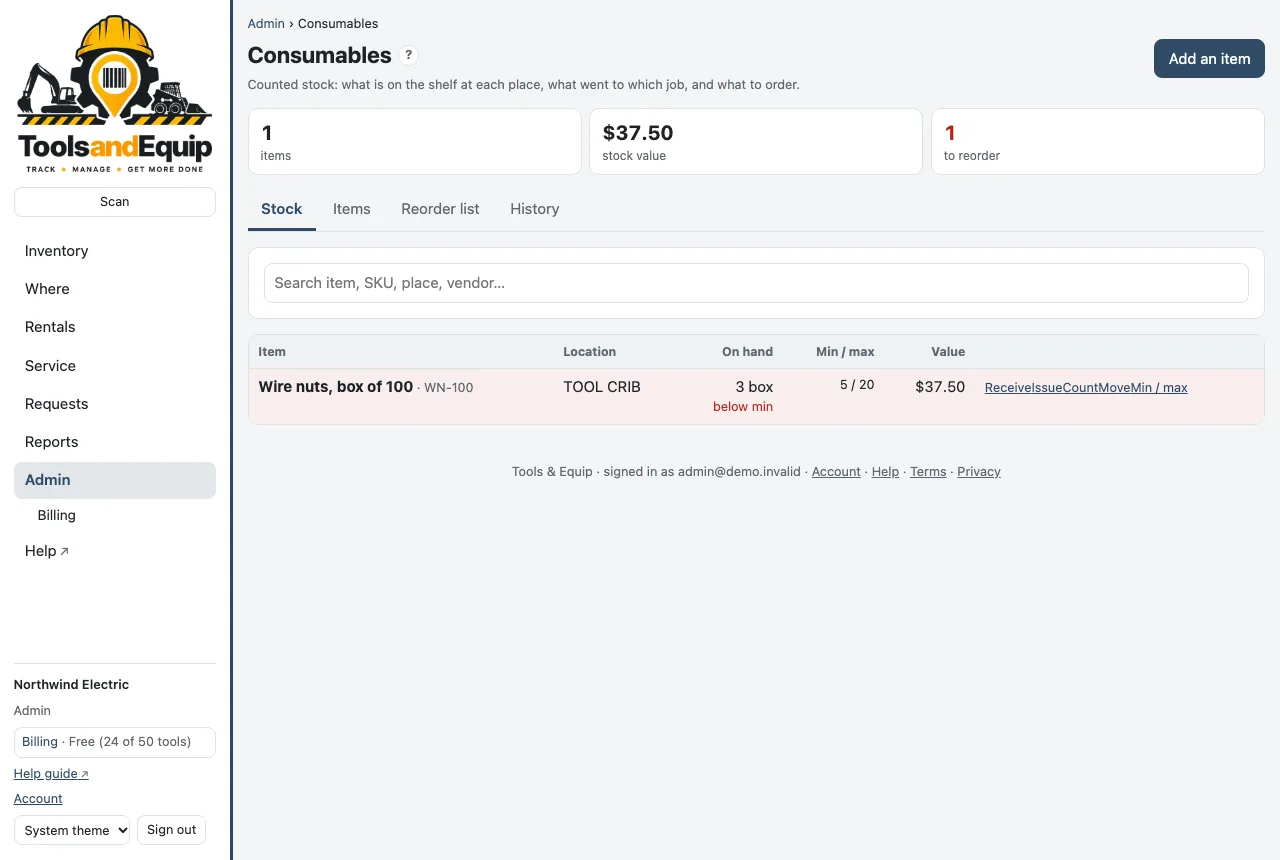
Add an item
- Press Add an item.
- Fill in the Name and, if you have them, SKU, barcode, unit (each, box, ft, roll…), unit cost, category and vendor.
- Save. Then receive the first delivery to put stock on the shelf.
Receive, issue, return, move, count
- Receive a delivery: on Stock, press Receive, pick the place, the quantity, and optionally the unit cost and vendor.
- Issue to a job or person: press Issue, pick where it comes from, the quantity, and the job, person or both. Issued stock counts in Cost to jobs.
- Return what comes back unused: Return on the Items tab.
- Move between places, or Count the shelf: type what you actually counted and the stock is set to it.
- Min / max: the reorder point (Minimum), how far to order up to (Maximum), and the bin.
The phone app has Consumables too: scan a bin or search, then issue or receive. It works with no signal and sends later.
Order what is low
The Reorder list shows everything at or below its minimum, grouped by vendor, with how many to order: up to the maximum, or twice the minimum if no maximum is set. Export it to Excel or print it for the buyer.