
On this page
Sign in with an email code
Who can do this Anyone your company has invited, on the website and in the phone app.
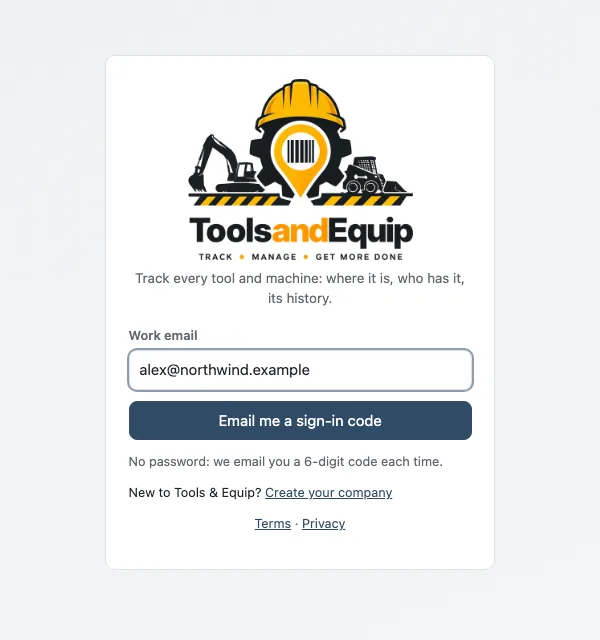
- Open app.toolsandequip.com (or the Tools & Equip app).
- Type your Work email and press Email me a sign-in code.
- Open the email from [email protected] and type the 6-digit Code.
- Press Sign in.
Good to know
- No password. We email a fresh code each time you sign in.
- A code works for 15 minutes and only once. If it has run out, press Send a new code and use the newest one.
- Not in your inbox? Check your junk or spam folder for mail from [email protected], wait a minute, then ask for a new code. You can ask again after about a minute.
- Wrong address? Press Use another email.
- You stay signed in on that browser or phone until you press Sign out. You don't need a code every day.
- Invite links: the button in your invite email opens the sign-in page with your email already filled in.
Never share your code with anyone, us included. Support will never ask for it.
Signed in, but "No company yet"
This means nobody has invited that email address yet. Ask your equipment admin to invite the exact address you used, then press Check again. Or press Create your company to start your own company account.
More than one company
If your email belongs to more than one company, pick the company at the bottom of the menu. The phone app has Switch to … buttons in Settings.
Sign out
Open the menu and press Sign out. On a shared computer, always sign out when you're done.
In the phone app, moves made with no signal wait on the phone. Signing out before they are sent loses them, so the app warns you first. Open Waiting to send and send them before you sign out.